
Best 34-inch monitor
As an Amazon Associate I earn from qualifying purchases.Some links may earn us a commission at no extra cost to you.
A great 34-inch ultrawide usually comes down to panel type (IPS/VA/OLED), refresh rate, and connectivity (especially USB-C/Thunderbolt if you want a one-cable laptop setup). For scoring, I used refresh rate (Hz) as the primary category metric because it’s the clearest “feel” upgrade for both gaming and everyday motion clarity across this size class.
How I researched
I compared the most relevant spec sheets and recent expert reviews from the last ~12 months, prioritized motion + clarity (refresh rate), panel strengths (IPS/VA/OLED), and ports, checked one-cable laptop fit, noted availability/EOL risk, and weighed long-term ownership (warranty, burn-in coverage where applicable).
Top picks
Dell UltraSharp U3425WE — Best for one-cable work setups
A premium “do-it-all” work ultrawide with a real hub built in. Why it wins: Thunderbolt hub + up to 90W power delivery and a 120Hz refresh for smoother daily use.

- Anti-glare
- Ambient Light Sensor
- Picture by Picture
Pros
-
120Hz at 3440×1440 for smooth scrolling and motion
-
Thunderbolt hub monitor with up to 90W laptop charging
-
IPS Black contrast listed at 2000:1 (strong for IPS)
-
Built-in “work” features like PiP/PbP are supported
Cons
-
Not an HDR-focused display
-
Premium pick if you don’t need Thunderbolt
Trade-offs / who should skip
-
If you only use HDMI and don’t need a hub, this is overkill.
-
If you want “true HDR pop,” look to OLED instead.
Scores: Performance 4.5/5 • Refresh rate (Hz) 4/5 • Ease of use 4.5/5 • Value 3.5/5
Alienware AW3423DWF — Best for HDR gaming and contrast
The 34-inch OLED-style “wow” pick. Why it wins: QD-OLED image quality plus a 165Hz refresh, and Dell highlights a 3-year warranty with OLED burn-in coverage.

- INFINITELY IMMERSIVE: Quantum Dot Display Technology enables a slim panel design and delivers a superior color performance with a higher peak luminance and greater color gamut range vs WOLED (White OLED) by taking the impressive qualities of OLED (such as true blacks & infinite contrast ratio) and enhances color performance by directly converting blue light into the primary colors of red and green through a Quantum Dot pixel layer.
- STUTTER-FREE SPEED: Experience ultra-low latency gameplay, support for HDR and cinematic color, plus smooth, tear-free gaming thanks to AMD FreeSync Premium Pro Technology and VESA AdaptiveSync Display certification.
- IMPECCABLE DESIGN: The jaw-dropping new design features a sleek QD-OLED curved 1800R panel integrated into the iconic new Legend 2.0 ID, plus customizable RGB AlienFX lighting, 360° ventilation for better heat dissipation, improved cable management and a new centralized OSD 5-Axis joystick to make adjusting your settings easier. The height adjustable stand with height markers and the tilt, swivel, and slant capabilities allow for easy viewing adjustment.
Pros
-
QD-OLED gives elite contrast and HDR impact (category-leading)
-
165Hz refresh for smooth competitive play
-
Burn-in coverage called out as part of 3-year warranty
-
Strong motion + low lag reputation in testing
Cons
-
OLED text clarity can bother some people
-
Needs basic OLED care habits (static UI)
Trade-offs / who should skip (failure cases)
-
If your screen shows static spreadsheets/tickers all day, I’d lean IPS instead.
-
If you’re sensitive to text fringing, try an IPS work monitor.
Scores: Performance 5/5 • Refresh rate (Hz) 4.5/5 • Ease of use 4/5 • Value 4/5
LG 34GP83A-B — Best for fast IPS gaming without OLED quirks
A high-refresh IPS ultrawide that balances speed and color. Why it wins: Nano IPS with 144Hz (160Hz overclock) and a strong gaming feature set.

- 34” UltraWide QHD (3440 x 1440) Curved Nano IPS Display
- IPS 1ms response time - 144Hz refresh rate
- NVIDIA G-SYNC Compatible
Pros
-
144Hz native, up to 160Hz OC for smoother motion
-
IPS panel for viewing angles and color consistency
-
G-SYNC Compatible + VRR support
-
Wide color coverage (DCI-P3 98% listed)
Cons
-
HDR 400 is limited versus OLED
-
Contrast is typical IPS (not VA/OLED)
Trade-offs / who should skip
-
If you game mostly in dark rooms and want inky blacks, OLED/VA will look deeper.
-
If you need USB-C one-cable laptop charging, pick a hub monitor instead.
Scores: Performance 4.5/5 • Refresh rate (Hz) 4.5/5 • Ease of use 4/5 • Value 4/5
BenQ PD3420Q — Best for creators who want accurate color
A creator-first 34″ ultrawide focused on calibrated color and workflow features. Why it wins: 98% P3, factory calibration targeting Delta E ≤ 3, and USB-C/Thunderbolt power delivery (65W) for a cleaner desk setup.

- 34 inch LED IPS 21:9 ULTRAWIDE WQHD HDR MONITOR: 34 inch LED IPS 21:9 ULTRAWIDE WQHD HDR MONITOR: 33% extra screen real estate for video editing, compared to 16:9 monitor
- USB-C: The USB-C synchronizes images, videos, data seamlessly, and can charge your mobile devices with all-in-one cable
- ICC SYNC THE DISPLAY P3 PROMPTLY : Compatible with Display P3 for Mac, ICC sync can be done within one second through the BenQ Display Pilot
Pros
-
Wide gamut: 98% P3, plus sRGB/Rec.709 coverage
-
Factory calibration targeting Delta E ≤ 3
-
USB-C/Thunderbolt power delivery listed at 65W
-
3-year standard limited warranty (BenQ)
Cons
-
60Hz-class refresh (not a gaming-first feel)
-
Not a “true HDR” monitor
Trade-offs / who should skip (failure cases)
-
If you play fast shooters and care about motion clarity, 144–165Hz will feel better.
-
If you want a curved screen for immersion, this model is flat.
Scores: Performance 4/5 • Refresh rate (Hz) 2/5 • Ease of use 4.5/5 • Value 3.5/5
Dell S3422DWG — Best budget 34-inch ultrawide (still fast)
A value-focused curved gaming ultrawide that keeps the essentials. Why it wins: 144Hz over DisplayPort, strong VA contrast (3000:1), and solid feature coverage for the money.
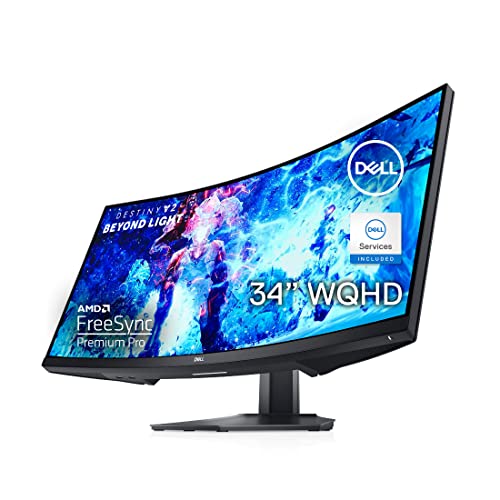
- 34-inch 1800R curved screen with 21:9 Aspect ratio and 3-sided Ultra-thin bezels
- WQHD resolution (3440x1440) offers 34% more screen pixels
- Vertical Alignment (VA) technology delivers an expanded 3000:1 contrast ratio and boasts a 90% DCI-P3 color coverage
Pros
-
3440×1440 with 144Hz (DP) for smooth play
-
VA contrast listed at 3000:1 for deeper blacks
-
Good productivity extras like PiP/PbP and USB hub
-
Strong “budget ultrawide” reputation in testing
Cons
-
No USB-C (one-cable laptops miss out)
-
VA smearing can show in dark fast motion
Trade-offs / who should skip (failure cases)
-
If you play dark, fast games and hate ghosting, IPS/OLED will look cleaner.
-
If you want to dock a laptop with one cable, get a USB-C/Thunderbolt hub model.
Scores: Performance 4/5 • Refresh rate (Hz) 4/5 • Ease of use 4/5 • Value 4.5/5
Quick compare
-
Best one-cable workstation: Dell UltraSharp U3425WE
-
Best HDR + contrast for gaming: Alienware AW3423DWF
-
Best fast IPS alternative: LG 34GP83A-B
-
Best for color-critical work: BenQ PD3420Q
-
Best budget all-rounder: Dell S3422DWG
FAQs
Is 34-inch ultrawide too big for a desk?
For most setups it’s fine, but the key is depth. If you sit close, a curve (like the Dell U3425WE or S3422DWG) can feel more comfortable.
Is 3440×1440 the “right” resolution for 34-inch?
It’s the common sweet spot in 34″ ultrawides because it keeps text sharp without making games brutally hard to run.
Should I worry about OLED burn-in on an ultrawide?
If you do lots of static UI all day, it’s smart to think about. The AW3423DWF is notable because Dell/Alienware and independent review coverage call out 3-year burn-in warranty coverage, which helps reduce the risk.
Do I need USB-C on a 34-inch monitor?
Only if you want one cable for display + charging + (sometimes) USB hub. If you’re on a desktop PC, it’s optional.
As an Amazon Associate, I earn from qualifying purchases.